From binder to hard hat in five screens.
These are the real TradeVerify screens, shown with example data. The office sets each worker up once; after that, anyone with a phone camera can check their certificates on site.
Step 1 of 5 · Company admin
Add a worker
The office adds each worker once — name and trade. TradeVerify gives them a private link that only their sticker opens.
- No app or account for the worker
- Inspectors see the worker's full name

Step 2 of 5 · Company admin
Upload their certificate images
Snap a photo or upload the PDF of each card. Add who issued it and the dates, then put them in the order inspectors should see.
- JPG, PNG, HEIC or PDF
- Photo location data is stripped
- Expiry dates drive the status

Step 3 of 5 · Company admin
Print the QR sticker
Print a sheet of round stickers and put one on the worker's hard hat. Every code links to that one worker — nobody can browse the rest of your crew.
- Avery 22856 round labels, 9 per sheet
- Deactivate a worker and their sticker stops showing certificates

Step 4 of 5 · Inspector on site
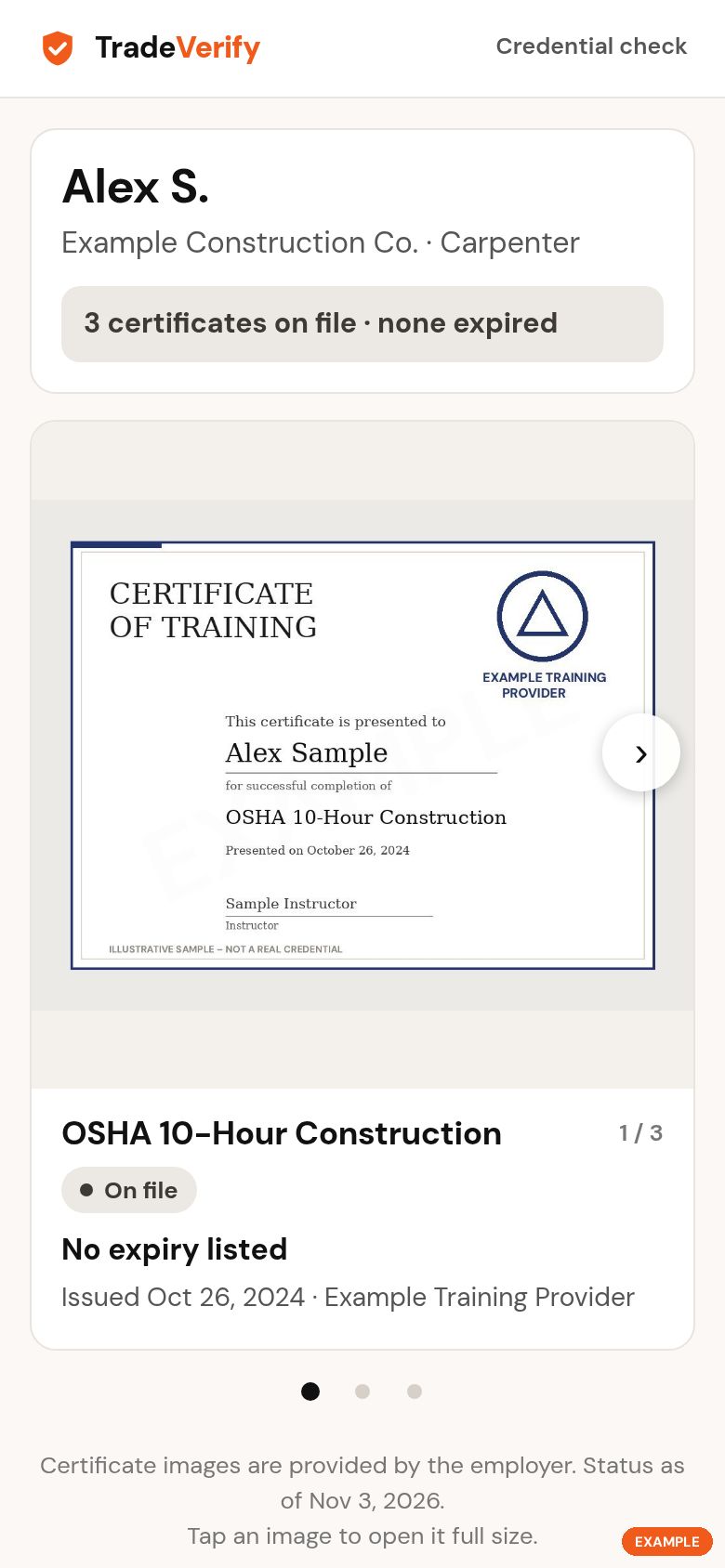
Inspector scans and sees the real certificates
Any phone camera opens that worker's actual certificate images in a swipe carousel, each with a clear current, expiring or expired status.
- No app, no login
- Only this worker's certificates
- Tap to open full size
Step 5 of 5 · Safety manager
The expiry matrix flags what's expiring
Every worker and certificate on one screen. Anything expiring in the next 30 days turns amber, anything expired turns red, and the list at the top tells you who to call.
- Sort by any certificate
- Same status the inspector sees

See it on your crew.
Tell us how many workers you run. We'll set up a walkthrough. Plans start at $99/month per crew.